

Charge up the Case Air prior to using. You’ll want to check the battery levels on your camera and the device you are connecting to. Same as with tethering with a cable – make sure that all three components are fully charged before beginning – the Case Air, your camera and the device you are connecting to (phone or tablet).
Download the Air Remote Mobile Tethering App:


Apple and the App Store are registered trademarks of Apple Computers, Inc. Google Play is a registered trademarkof Google LLC. All rights reserved.
How to Get Started
- Keep the camera turned off and connect the Case Air to the camera with the supplied USB cable into the USB data port.
- Turn on the Case Air – press and hold the button on the top of the Case Air. The blue light will flicker, then turn to a solid blue light. Once solid, the WiFi network has been created.
- On the device (phone or tablet or computer), connect to the Air Remote Mobile Tethering App WiFi, enter the password located on the bottom of the Case Air itself.
- Open the app or software, you’ll see a message there’s no camera – Now turn on the camera and allow the camera to communicate to the app via the WiFi network, refresh if needed.
We recommend shooting in RAW+JPG small.
The RAW files will save to the card in the camera.
The JPG thumbnail will transfer to the device for review.
In the app Settings, turn ON:
- Auto Thumbnails
- RAW Download Ignore
- Auto Download
Make Sure
- The Case Air is fully charged, you will get a green light.
- Have fully charged batteries in the camera.
- Charge up the device you are connecting to – iOS or Android.
- Disable Personal Hotspot and Bluetooth – you may need to put the device into Airplane Mode.
- Remove WiFi cards from the camera and disable any WiFi communication on the camera.
- If the camera takes two cards, please use just one.
- The correct cable is connecting from the Case Air into the USB port on the camera.
- Close all other apps on device, run Air Remote Mobile Tethering App only.
- Give/Allow access or permissions to Air Remote Mobile Tethering App
- If connecting to Android or Windows device, disable anti-virus apps or software.
- Disable Google Drive sync or Dropbox
- Update the firware – check Update (in Settings).
- Be sure your camera has been updated with its latest firmware updates.
- Empty the cache regularly (in Settings).
The Case Air comes with the following:
- Camera Connector Cable (USB 2.0 Mini-B 5-Pin)
- Camera Connector Cable (USB 2.0 Mini-B 8-Pin)
- Camera Connector Cable (USB 3.0 Micro-B)
- USB Connector Cable (OTG)
- Device Charging Cable
- Lanyard with Threading Tool. Watch our video on how to Connect the lanyard to the Case Air.
If you get a notification of a firmware update, please update, make sure the Case Air is fully charged before updating the firmware – DO NOT turn off the Case Air or the device you are connected to during the firmware update, this will cause a malfunction.
Download Product Manuals
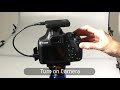
Connecting Case Air
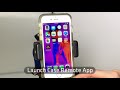
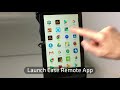
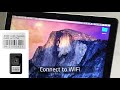
Watch Instructional Videos
*Demonstrated on Apple iOS. Air Remote, referenced in the videos below, is now called Air Remote Mobile Tethering App. Air Remote is compatible with select Canon and Nikon cameras and both Air Direct and Case Air Wireless Tethering Systems.











Submit an FAQ Question
For Technical Support or Customer Service, please email us at customersupport@tethertools.com
Additional details or to purchase a Case Air Wireless Tethering System
AeroTrac Workstation Pro Kit
Use the four included workstation legs for a freestanding setup, or connect AeroTrac to the support that best fits your workflow. The included Baby Ballhead Adapter supports a 5/8 in Baby-pin setup, while built-in 1/4″-20 and 3/8″-16 mounting points connect to compatible tripods, light stands, C-stands, and carts.
The aluminum AeroTrac platform weighs 3.3 lb (1.5 kg), supports up to 30 lb (14 kg), opens to 17 × 11 × 0.35 in, and folds to 8.5 × 11 × 0.75 in. Keep every tripod, stand, cart, adapter, and arm within its own load rating for a stable, well-matched setup.
The Pro Kit combines the foldable AeroTrac platform with a carrying case, four workstation legs, Baby Ballhead Adapter, retractable accessory holder, hooks, tech straps, Tech Clamps, removable handle, configuration tool, accessory threads, and Action Tabs. Set it up as a freestanding photography laptop stand or mount it to a compatible tripod, stand, or cart for studio and on-location tethering.
AeroTrac Workstation System
Some tables will come from the factory with slightly excessive rigidity. This can result in the AeroTrac table not laying perfectly flat when opened and/or it may be difficult to slide the bar into the locked position. If your table is not perfectly flat when opened or you are having difficulty sliding the locking bar, you can easily correct this. Applying slight pressure to each half of the underside of the table will “teach” the table to open to the correct position. This will ensure the table is flat when open and that the sliding bar can easily slide into the locked position. The following video demonstrates the process for ensuring that the table opens correctly and that the sliding bar can move easily across the spine of the table. You will only need to perform this process once.
The anodized-aluminum platform weighs 3.3 lb (1.5 kg), supports up to 30 lb (14 kg), opens to 17 × 11 × 0.35 in, and folds to 8.5 × 11 × 0.75 in. Built-in 1/4″-20 and 3/8″-16 mounting points connect the laptop stand to compatible photo tripods, light stands, C-stands, and carts, so the same platform can move between studio and location workflows.
Choose the mounting path that fits your setup. AeroTrac creates a secure laptop stand on compatible photo tripods, light stands, C-stands, and carts through built-in 1/4″-20 and 3/8″-16 mounting points. Add the Rock Solid Arca Quick-Release Adapter + Plate for Arca-style mounting or the Baby Ballhead Adapter for a 5/8 in Baby-pin workflow. Both adapters are available separately.
The base system includes the AeroTrac Workstation Plate, two Tech Clamps, removable handle, configuration tool, two 1/4″-20 accessory threads, and two Action Tabs. Expand the workstation as your workflow grows with optional legs, carrying case, tripod or stand adapters, and track-mounted accessories.
Smart Shooter
Smart Shooter 6 records two files that help Technical Support diagnose camera connections, downloads and application errors:
smartshooter6_log.txtsmartshooter6_history.txt
In Smart Shooter 6, select Help > Locate Log File. The application will open the correct folder in File Explorer on Windows or Finder on macOS.
Attach both files when contacting Tether Tools Technical Support. See the official Smart Shooter 6 Getting Help documentation for the current default folder locations.
Open Smart Shooter and select About Smart Shooter from the application menu. The About window shows the installed version number.
Include the full version number, your operating-system version and your camera model when contacting Tether Tools Technical Support. This helps the support team confirm compatibility and provide the correct troubleshooting steps.
If Smart Shooter 6 closes unexpectedly on macOS, the system crash report can help Technical Support identify the cause.
- Open the Console app from Applications > Utilities.
- In the sidebar under Reports, select Crash Reports.
- Find the most recent report for Smart Shooter 6. Crash-report filenames normally use the
.ipsextension. - Select the report, then choose File > Reveal in Finder.
- Attach the report when contacting Tether Tools Technical Support.
Apple provides additional instructions for viewing reports in Console on Mac.
If Smart Shooter 6 becomes unresponsive on Windows, a memory dump can help Technical Support diagnose what the application was doing when it stopped responding.
- Press Ctrl + Shift + Esc to open Task Manager.
- If Task Manager opens in its compact view, select More details.
- Open the Processes or Details tab and find Smart Shooter 6.
- Right-click the Smart Shooter 6 process and select Create memory dump file.
- Wait for Windows to finish creating the file, then note the location shown in the confirmation dialog.
Memory-dump files can be large. Contact Tether Tools Technical Support before sending the file if you need an upload link.
For more detail, see Microsoft’s guide to troubleshooting processes with Task Manager.
In some situations, the Operating System might inadvertently shut down the connection between Smart Shooter and Lightroom. If you have successfully installed the Smart Shooter Lightroom Plug-In and are finding that your images are showing up normally in Smart Shooter, but not transferring into Lightroom even though you have an active tethering session, it may be necessary to reset the connection.
The following process will force Smart Shooter to create the network socket connection to the plug-in:
- 1. Quit Lightroom
- 2. Open Smart Shooter Preferences
- 3. Go to Lightroom tab
- 4. Disable checkbox for “Enable Lightroom Tethering Connection”
- 5. Click “Apply”
- 6. Enable that checkbox again and click Apply
- 7. Open Lightroom and begin a new tethering session
By default, the Sony Imaging Edge software utilizes a customer driver that is not compatible with other software. In order for the camera to be used with other software, you will need to change the driver that Windows is using with the camera connection. To do this, please follow these steps.
- Connect the camera via cable and then power on the camera
- Open the Windows Device Manager (use Windows search option)
- Turn down libusbK Usb Devices category. The camera will be listed as Sony Remote Control Camera.
- Right click on Sony Remote Control Camera and select Update Driver.
- In the new window select Browse my computer for drivers.
- In the next screen, select Let me pick from a list of available drivers on my computer.
- In the next screen, select the MTP USB Device option and select Next.
- Once the update has completed, you can close the window. You should also hear a chime indicating Windows has recognized a new connected device.
- The camera will be listed under Portable Devices. At this point, Smart Shooter will be able to connect to the camera
Please Note: switching to the MTP driver will make the Camera inaccessible in the Sony Imaging Edge Software, so the process will need to be reversed for the camera to again be available in the Imaging Edge software.
Some users who are running MacOS 13 – Ventura may experience issues with the camera not
being properly recognized within Smart Shooter. While we generally recommend quitting all
other software while tethering, including software running in the background, there is a specific
software conflict on some systems that can cause connection problems on MacOS 13 – Ventura.
Cloud-Syncing software like Google Drive and Dropbox has been found to block the connection
to the camera on some systems running MacOS 13 – Ventura. Therefore, please Quit Dropbox
and Google Drive from the menu bar in order to prevent this conflict from occurring. Once
both pieces of software are quit, we expect no issues with compatible camera connections on
MacOS 13 – Ventura.
Please note that both Google Drive and Dropbox may be set up to launch automatically upon
login, which may result in an ongoing software conflict. Therefore, we would recommend
removing this software from the Login Items (System Settings → Login Items) and/or diligently
checking the menu bar for either software before starting each tethering session.
Smart Shooter supports a broad range of Canon, Fujifilm, Nikon, Ricoh, and Sony cameras on macOS and Windows. Current support includes models such as Canon R1 and R5 Mark II, Fujifilm GFX 100 II and X-H2S, Nikon Z6 III and Z8, Ricoh Theta S, and Sony a1 II, a7 V, a9 III, FX3, and ZV-E10 II. Use the official Smart Shooter supported cameras list to quickly find your model. Start a free 30-day trial to test Smart Shooter with your camera and workflow before purchase.
Smart Shooter uses a focused, standalone tethering workflow instead of a Lightroom plug-in. To bring captures into Lightroom Classic automatically, choose an empty folder for Smart Shooter downloads, then select that same folder as the Watched Folder in Lightroom Classic. As Smart Shooter transfers each image, Lightroom Classic detects it, moves it to your chosen destination, and adds it to the catalog. Smart Shooter handles camera control, capture, transfer, and on-set review while Lightroom Classic handles cataloging and editing. Smart Shooter can also save star ratings to EXIF so your selections carry into compatible downstream workflows. See how to set up Auto Import in Lightroom Classic.
TetherGuard LeverLock Plate
The plate secures the cable at the camera so pulls and on-set movement are absorbed by the plate rather than the data port. Its CamCleat lever, anti-slip speed bump, retention ridges, and S-channel reduce cable movement and accidental disconnects.
The plate is Arca-compatible and has a 1/4″-20 thread for attaching another tripod plate. Rubber non-slip pads help keep it aligned on the camera. If you use a cage, battery grip, or small camera body, confirm base clearance before purchase.
The LeverLock accepts cables up to 6.5 mm (0.26 in) in diameter. Confirm your cable diameter before purchase, especially when using third-party or unusually thick cables.
Submit an FAQ Question
Need further assistance? For Technical Support or Customer Service, please email us at customersupport@tethertools.com
