


Charge up the Case Air prior to using. You’ll want to check the battery levels on your camera and the device you are connecting to. Same as with tethering with a cable – make sure that all three components are fully charged before beginning – the Case Air, your camera and the device you are connecting to (phone or tablet).
Download the Air Remote Mobile Tethering App:


Apple and the App Store are registered trademarks of Apple Computers, Inc. Google Play is a registered trademarkof Google LLC. All rights reserved.
How to Get Started
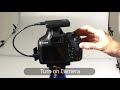
- Keep the camera turned off and connect the Case Air to the camera with the supplied USB cable into the USB data port.
- Turn on the Case Air – press and hold the button on the top of the Case Air. The blue light will flicker, then turn to a solid blue light. Once solid, the WiFi network has been created.
- On the device (phone or tablet or computer), connect to the Air Remote Mobile Tethering App WiFi, enter the password located on the bottom of the Case Air itself.
- Open the app or software, you’ll see a message there’s no camera – Now turn on the camera and allow the camera to communicate to the app via the WiFi network, refresh if needed.
We recommend shooting in RAW+JPG small.
The RAW files will save to the card in the camera.
The JPG thumbnail will transfer to the device for review.
In the app Settings, turn ON:
- Auto Thumbnails
- RAW Download Ignore
- Auto Download
Make Sure
- The Case Air is fully charged, you will get a green light.
- Have fully charged batteries in the camera.
- Charge up the device you are connecting to – iOS or Android.
- Disable Personal Hotspot and Bluetooth – you may need to put the device into Airplane Mode.
- Remove WiFi cards from the camera and disable any WiFi communication on the camera.
- If the camera takes two cards, please use just one.
- The correct cable is connecting from the Case Air into the USB port on the camera.
- Close all other apps on device, run Air Remote Mobile Tethering App only.
- Give/Allow access or permissions to Air Remote Mobile Tethering App
- If connecting to Android or Windows device, disable anti-virus apps or software.
- Disable Google Drive sync or Dropbox
- Update the firware – check Update (in Settings).
- Be sure your camera has been updated with its latest firmware updates.
- Empty the cache regularly (in Settings).
The Case Air comes with the following:
- Camera Connector Cable (USB 2.0 Mini-B 5-Pin)
- Camera Connector Cable (USB 2.0 Mini-B 8-Pin)
- Camera Connector Cable (USB 3.0 Micro-B)
- USB Connector Cable (OTG)
- Device Charging Cable
- Lanyard with Threading Tool. Watch our video on how to Connect the lanyard to the Case Air.
If you get a notification of a firmware update, please update, make sure the Case Air is fully charged before updating the firmware – DO NOT turn off the Case Air or the device you are connected to during the firmware update, this will cause a malfunction.
Download Product Manuals
Connecting Case Air
Watch Instructional Videos
*Demonstrated on Apple iOS. Air Remote, referenced in the videos below, is now called Air Remote Mobile Tethering App. Air Remote is compatible with select Canon and Nikon cameras and both Air Direct and Case Air Wireless Tethering Systems.











Submit an FAQ Question
For Technical Support or Customer Service, please email us at customersupport@tethertools.com
Additional details or to purchase a Case Air Wireless Tethering System
Case Air
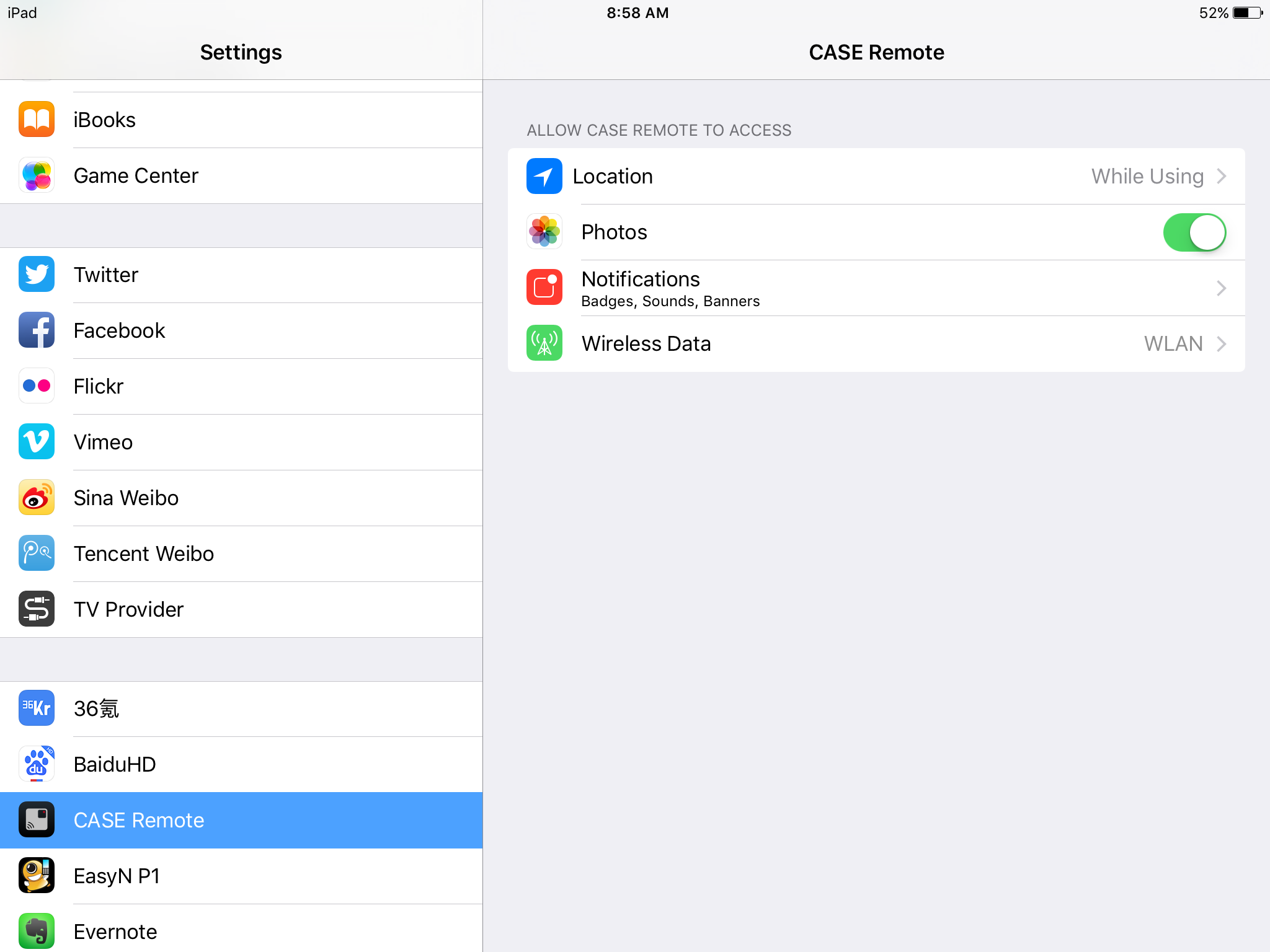
Sometimes, during installation or first usage, the app does not have permissions to create a needed album in the Photos App. Check for these two things:
- Check that the app has permissions to access the iOS photos. Go to Settings -> Air Remote Mobile and check to see if it has photos permissions turned on.
- Create an album in the Photos app by going to Photos -> Albums -> Tap the + sign in the upper left. Name the album CASE Album
- The Case Air is fully charged (green light) and you have fully charged batteries in the camera well.
- Disable WiFi communication on the camera itself and/or have removed any WiFi cards in the camera.
To start up please try the following:
Shut everything down. Turn off your camera and the Case Air. Completely close the app or the software, do not simply not minimize it.
- Keep the camera turned off
- Create the WiFi network by turning on the Case Air (press & hold 2 seconds, blue flickering light indicates CA is creating WiFi, solid blue light WiFi network is created)
- Connect your device to the Case Air WiFi
- Open the app or software
- Turn on the camera so the app/software will then recognize the camera.
If you get a notification of a firmware update, please update, make sure the Case Air is fully charged before updating the firmware.
RapidMount Product Information and Use
Uncategorized
Submit an FAQ Question
Need further assistance? For Technical Support or Customer Service, please email us at customersupport@tethertools.com
