


Charge up the Case Air prior to using. You’ll want to check the battery levels on your camera and the device you are connecting to. Same as with tethering with a cable – make sure that all three components are fully charged before beginning – the Case Air, your camera and the device you are connecting to (phone or tablet).
Download the Air Remote Mobile Tethering App:


Apple and the App Store are registered trademarks of Apple Computers, Inc. Google Play is a registered trademarkof Google LLC. All rights reserved.
How to Get Started
- Keep the camera turned off and connect the Case Air to the camera with the supplied USB cable into the USB data port.
- Turn on the Case Air – press and hold the button on the top of the Case Air. The blue light will flicker, then turn to a solid blue light. Once solid, the WiFi network has been created.
- On the device (phone or tablet or computer), connect to the Air Remote Mobile Tethering App WiFi, enter the password located on the bottom of the Case Air itself.
- Open the app or software, you’ll see a message there’s no camera – Now turn on the camera and allow the camera to communicate to the app via the WiFi network, refresh if needed.
We recommend shooting in RAW+JPG small.
The RAW files will save to the card in the camera.
The JPG thumbnail will transfer to the device for review.
In the app Settings, turn ON:
- Auto Thumbnails
- RAW Download Ignore
- Auto Download
Make Sure
- The Case Air is fully charged, you will get a green light.
- Have fully charged batteries in the camera.
- Charge up the device you are connecting to – iOS or Android.
- Disable Personal Hotspot and Bluetooth – you may need to put the device into Airplane Mode.
- Remove WiFi cards from the camera and disable any WiFi communication on the camera.
- If the camera takes two cards, please use just one.
- The correct cable is connecting from the Case Air into the USB port on the camera.
- Close all other apps on device, run Air Remote Mobile Tethering App only.
- Give/Allow access or permissions to Air Remote Mobile Tethering App
- If connecting to Android or Windows device, disable anti-virus apps or software.
- Disable Google Drive sync or Dropbox
- Update the firware – check Update (in Settings).
- Be sure your camera has been updated with its latest firmware updates.
- Empty the cache regularly (in Settings).
The Case Air comes with the following:
- Camera Connector Cable (USB 2.0 Mini-B 5-Pin)
- Camera Connector Cable (USB 2.0 Mini-B 8-Pin)
- Camera Connector Cable (USB 3.0 Micro-B)
- USB Connector Cable (OTG)
- Device Charging Cable
- Lanyard with Threading Tool. Watch our video on how to Connect the lanyard to the Case Air.
If you get a notification of a firmware update, please update, make sure the Case Air is fully charged before updating the firmware – DO NOT turn off the Case Air or the device you are connected to during the firmware update, this will cause a malfunction.
Download Product Manuals
Connecting Case Air
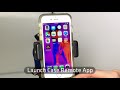
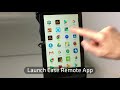
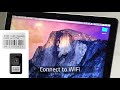
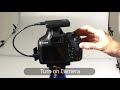
Watch Instructional Videos
*Demonstrated on Apple iOS. Air Remote, referenced in the videos below, is now called Air Remote Mobile Tethering App. Air Remote is compatible with select Canon and Nikon cameras and both Air Direct and Case Air Wireless Tethering Systems.







Submit an FAQ Question
For Technical Support or Customer Service, please email us at customersupport@tethertools.com
Additional details or to purchase a Case Air Wireless Tethering System
AeroTrac Ultimate Tethering Kit
It is designed for photographers, digital techs, and creative teams that need a rolling laptop workstation plus a separate client-viewing monitor on set. It supports live capture review, edits, or playback without crowding the creator’s work surface. Use a smaller AeroTrac kit when a monitor station is not required.
The kit includes the AeroTrac system and core accessories, carrying case, Baby Ballhead Adapter, retractable cup holder, four workstation legs, two hooks, two tech straps, Low Boy Roller, Rock Solid VESA Studio Monitor Mount, Rock Solid Master Clamp, and Rock Solid Master Side Arm.
Pair your preferred laptop and VESA-compatible display with the AeroTrac platform, Low Boy Roller, Rock Solid VESA Studio Monitor Mount, Master Clamp, and Master Side Arm. The result is a mobile setup that gives the creator a dedicated tethered-capture surface and clients a clear review screen. Confirm the monitor’s VESA pattern and load rating for a well-matched configuration.
AeroTrac Workstation Pro Kit
Use the four included workstation legs for a freestanding setup, or connect AeroTrac to the support that best fits your workflow. The included Baby Ballhead Adapter supports a 5/8 in Baby-pin setup, while built-in 1/4″-20 and 3/8″-16 mounting points connect to compatible tripods, light stands, C-stands, and carts.
The aluminum AeroTrac platform weighs 3.3 lb (1.5 kg), supports up to 30 lb (14 kg), opens to 17 × 11 × 0.35 in, and folds to 8.5 × 11 × 0.75 in. Keep every tripod, stand, cart, adapter, and arm within its own load rating for a stable, well-matched setup.
The Pro Kit combines the foldable AeroTrac platform with a carrying case, four workstation legs, Baby Ballhead Adapter, retractable accessory holder, hooks, tech straps, Tech Clamps, removable handle, configuration tool, accessory threads, and Action Tabs. Set it up as a freestanding photography laptop stand or mount it to a compatible tripod, stand, or cart for studio and on-location tethering.
AeroTrac Workstation System
Some tables will come from the factory with slightly excessive rigidity. This can result in the AeroTrac table not laying perfectly flat when opened and/or it may be difficult to slide the bar into the locked position. If your table is not perfectly flat when opened or you are having difficulty sliding the locking bar, you can easily correct this. Applying slight pressure to each half of the underside of the table will “teach” the table to open to the correct position. This will ensure the table is flat when open and that the sliding bar can easily slide into the locked position. The following video demonstrates the process for ensuring that the table opens correctly and that the sliding bar can move easily across the spine of the table. You will only need to perform this process once.
The anodized-aluminum platform weighs 3.3 lb (1.5 kg), supports up to 30 lb (14 kg), opens to 17 × 11 × 0.35 in, and folds to 8.5 × 11 × 0.75 in. Built-in 1/4″-20 and 3/8″-16 mounting points connect the laptop stand to compatible photo tripods, light stands, C-stands, and carts, so the same platform can move between studio and location workflows.
Choose the mounting path that fits your setup. AeroTrac creates a secure laptop stand on compatible photo tripods, light stands, C-stands, and carts through built-in 1/4″-20 and 3/8″-16 mounting points. Add the Rock Solid Arca Quick-Release Adapter + Plate for Arca-style mounting or the Baby Ballhead Adapter for a 5/8 in Baby-pin workflow. Both adapters are available separately.
The base system includes the AeroTrac Workstation Plate, two Tech Clamps, removable handle, configuration tool, two 1/4″-20 accessory threads, and two Action Tabs. Expand the workstation as your workflow grows with optional legs, carrying case, tripod or stand adapters, and track-mounted accessories.
LeverLock + Optima 10G Cable Kit
Choose a 15 ft (4.6 m) or 31 ft (9.4 m) Optima 10G cable in orange or black. Its dedicated data architecture keeps image transfer separate from charging to support stable recognition and consistent performance at up to 10Gbps, especially with newer camera bodies. Pair it with TetherBoost Pro Core Controller extensions for a total run of up to 63 ft (19.2 m), and use a separate approved solution when continuous camera power is part of your setup.
The LeverLock Plate fits Arca-style mounts and includes a 1/4″-20 thread for use with an additional tripod plate. It accepts cables up to 6.5 mm (0.26 in) in diameter. Confirm clearance if the camera uses a cage, grip, or unusually small base.
The kit includes one TetherGuard LeverLock Plate, one TetherPro Optima 10G USB-C straight-to-right-angle cable, and ten ProTab cable ties. The LeverLock carries a limited lifetime warranty, and the cable carries a one-year warranty.
Optima 10G
Choose 3 ft, 6 ft, 10 ft, 15 ft, or 31 ft in orange or black. The active USB-C 3.2 Gen 2 cable supports up to 10Gbps data transfer. Pair it with TetherBoost Pro Core Controller extensions for a total tethering run of up to 63 ft (19.2 m), subject to the recommended configuration.
For Fujifilm GFX-series USB-C cameras, choose the 3 ft, 10 ft, 15 ft, or 31 ft Optima 10G cable for a direct connection. The 6 ft version also fits the workflow when paired with inline TetherBoost, giving you a stable configuration across the available lengths.
Charging is handled separately so the Optima 10G straight-to-straight cable can keep its USB-C connection focused on camera recognition and image transfer. This dedicated data path helps newer camera bodies maintain stable communication and consistent cable performance. Pair it with an approved camera-power solution when you want continuous power during the shoot.
TetherGuard LeverLock Plate
The plate secures the cable at the camera so pulls and on-set movement are absorbed by the plate rather than the data port. Its CamCleat lever, anti-slip speed bump, retention ridges, and S-channel reduce cable movement and accidental disconnects.
The plate is Arca-compatible and has a 1/4″-20 thread for attaching another tripod plate. Rubber non-slip pads help keep it aligned on the camera. If you use a cage, battery grip, or small camera body, confirm base clearance before purchase.
The LeverLock accepts cables up to 6.5 mm (0.26 in) in diameter. Confirm your cable diameter before purchase, especially when using third-party or unusually thick cables.
Submit an FAQ Question
Need further assistance? For Technical Support or Customer Service, please email us at customersupport@tethertools.com
