

FujiFilm GFX 100 II Tethering Gear and Accessories
Options for the FujiFilm GFX 100 II
Tether Cables | Camera Tethering Information | Tethering Software | Power ManagementLearn the basics of tethering
USB-A Compatible Cable for the FujiFilm GFX 100 II
Up to 5 Gbps transfer speed
-
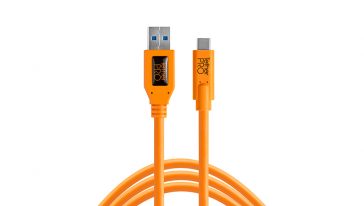
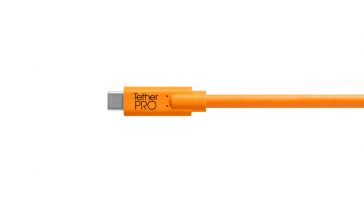
TetherPro USB 3.0 to USB-C
$49.99 Select options This product has multiple variants. The options may be chosen on the product page -
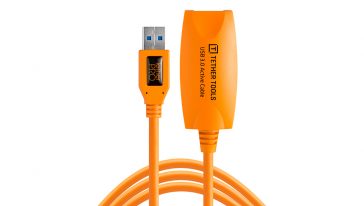
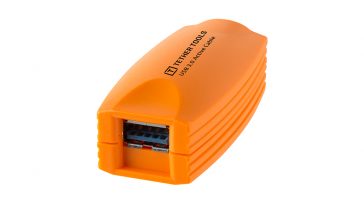
TetherPro USB 3.0 to Female Active Extension
$49.99 Add to cart
Eliminate USB 3.0 Connectivity Issues
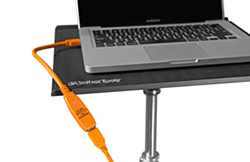
The TetherBoost Pro System provides consistent power to maintain a stable connection for tethered image transfer when using a DSLR or medium-format digital back system connected to a computer via USB 3.0 cables. This streamlined solution alleviates current frustrations among photographers experiencing dropped signals when shooting with USB 3.0 cameras and computers. Read this helpful article to understand more: Why does my connection fail?
For lengths over 15 feet, we recommend using the both the TetherPro USB 3.0 SuperSpeed Active Extension Cable and TetherBoost Pro Core Controller. You will most likely need a TetherBoost Pro in this setup.
Recommended Kits for the FujiFilm GFX 100 II
-
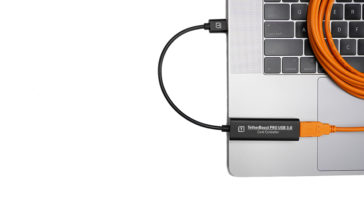
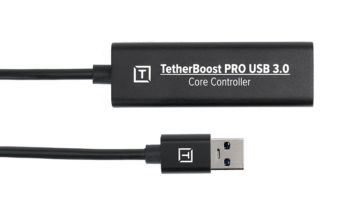
TetherBoost Pro USB 3.0 Core Controller
$59.99 Select options This product has multiple variants. The options may be chosen on the product page -
TetherPro USB 3.0 to Female Active Extension
$49.99 Add to cart
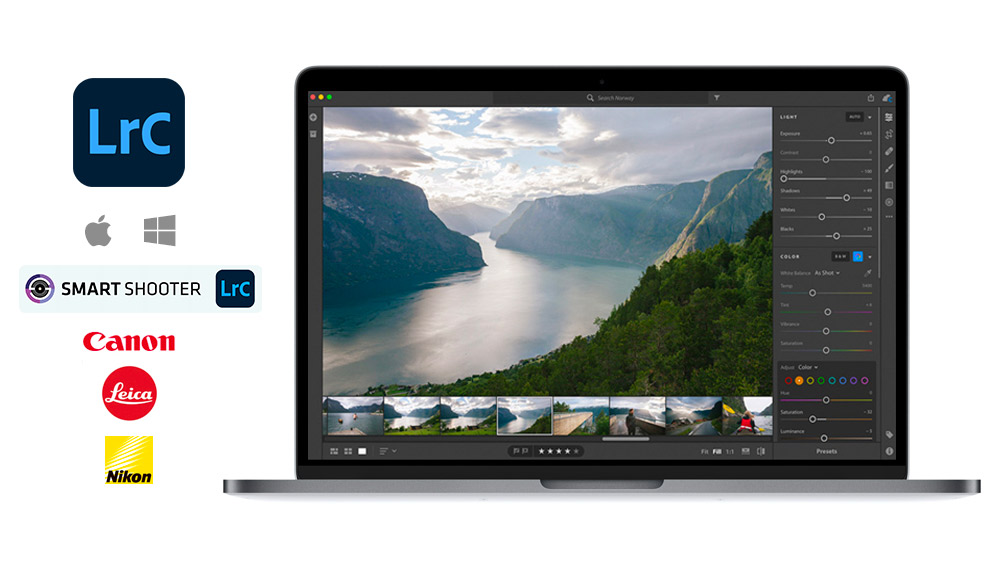
FujiFilm GFX 100 II Tethering Information
USB-C Camera: USB-C
USB Specification: USB 3.2 Gen 2 x 1
Transfer Speed: 10 Gbit/s Gbps | Optima 10G Speed
Power On/Off Options: Yes
(See Power Delivery Settings Below)
USB Specification: USB 3.2 Gen 2 x 1
Transfer Speed: 10 Gbit/s Gbps | Optima 10G Speed
Power On/Off Options: Yes
(See Power Delivery Settings Below)
Battery: NP-W235
Tethering Settings: Network/USB Setting → Select Connection Setting → USB Tether Shooting FIXED (Fixed for troubleshooting only - Auto is recommended for normal workflows) SETUP → Power Management → Auto Power Off → OFF
Airplane Mode: Network/USB Setting → Airplane Mode: ON
Need additional help?
If you don't see your camera model or the information you're looking for, our dedicated Technical Support team is ready to assist. Contact us at technicalsupport@tethertools.com or +1 888-854-6565 for expert guidance, troubleshooting, and workflow support.Compatible Tethering Software for the FujiFilm GFX 100 II
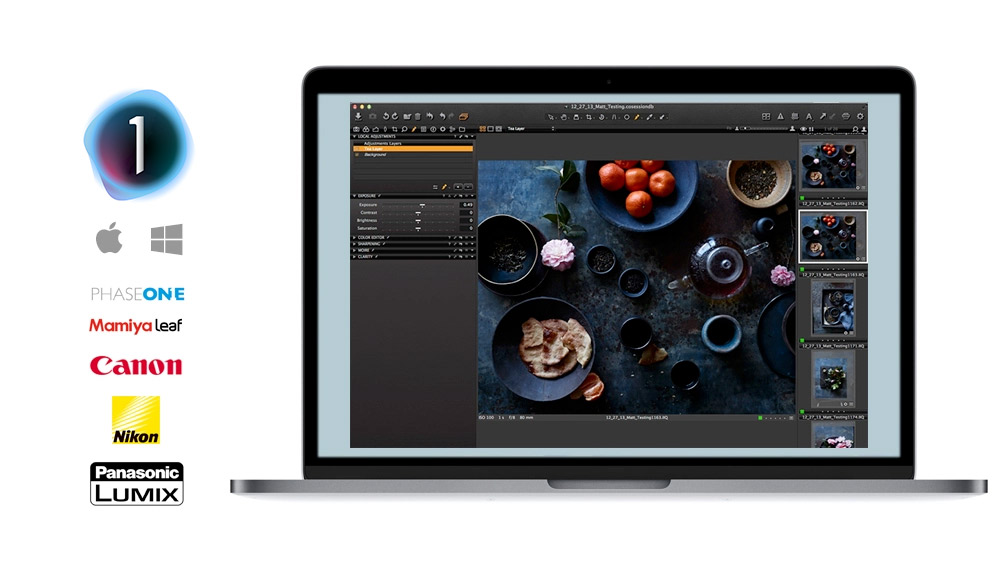

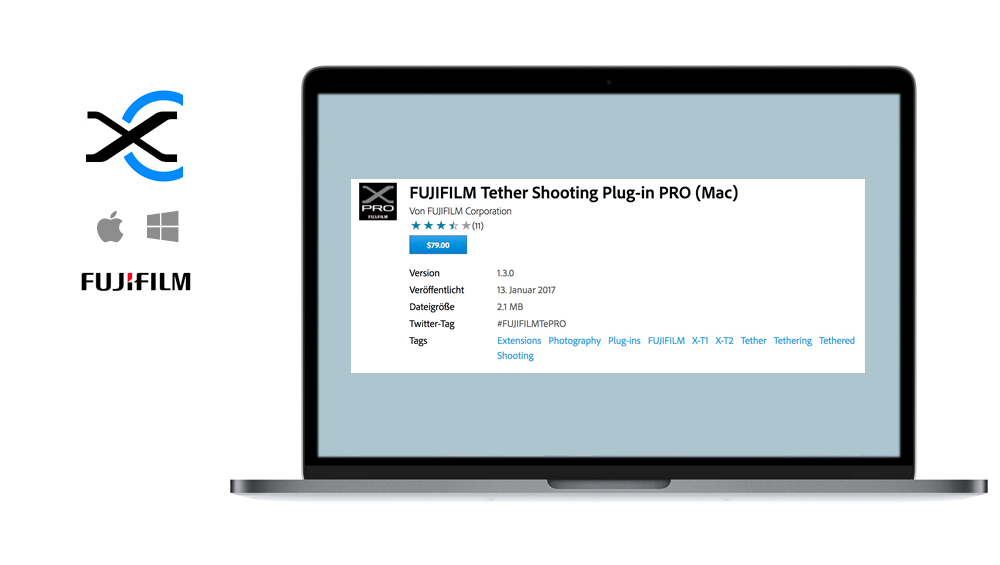
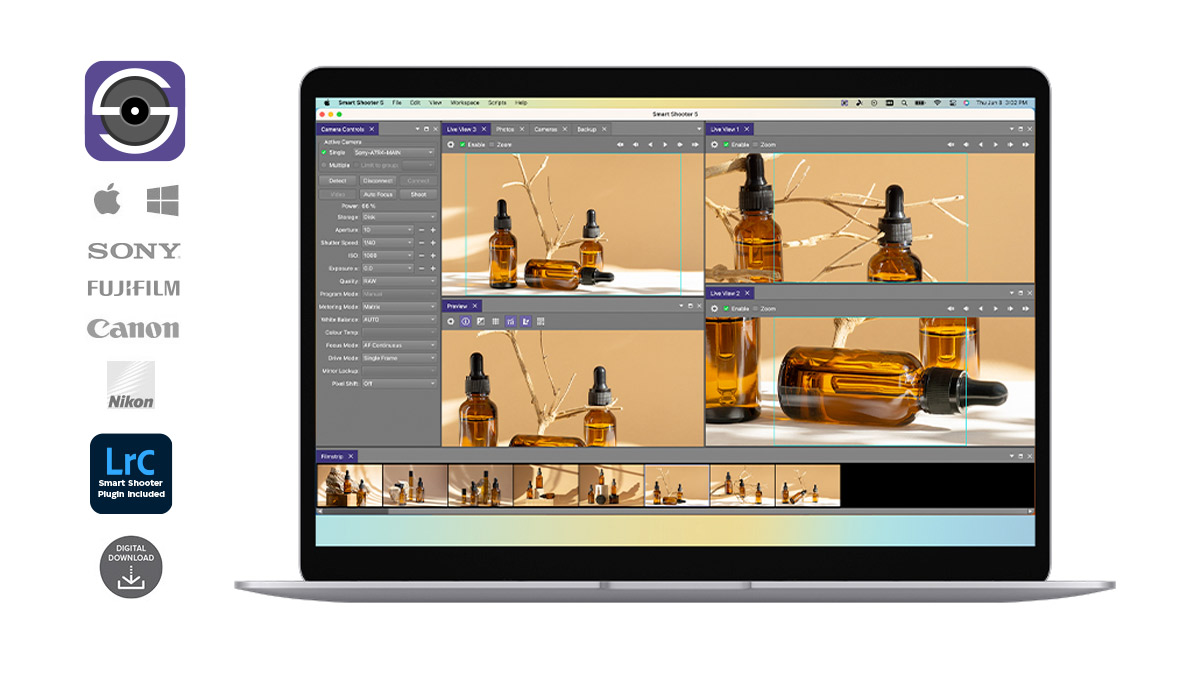
Compatible ONsite Relay Insert for the FujiFilm GFX 100 II - FujiFilm Battery NP-W235 (CRFW235)
-
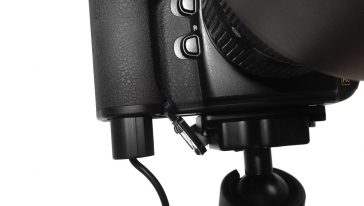
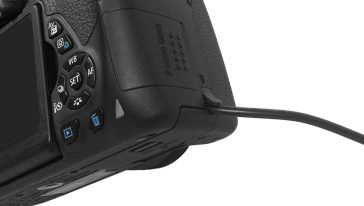 50% OFF
Relay Camera Coupler
50% OFFPrice range: $0.00 through $54.99 Select options This product has multiple variants. The options may be chosen on the product page -
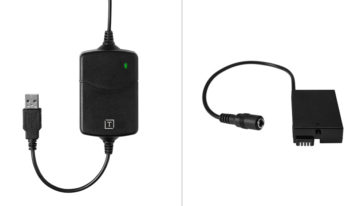
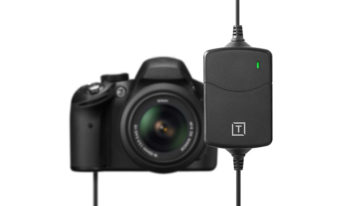 UP TO 58% OFF
ONsite Relay A Coupler Bundle
UP TO 58% OFFPrice range: $119.99 through $174.98 Select options
