


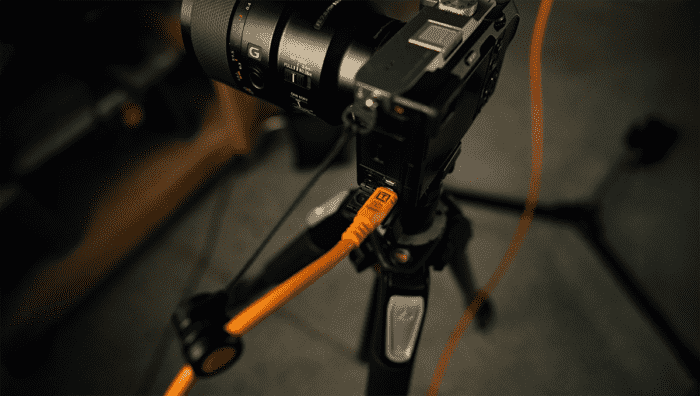
Sometimes, yes. A regular USB-C cable may work for camera tethering if it supports data transfer, matches your camera and computer ports, and can maintain a stable connection during capture. For professional tethered photography, the cable’s data speed, working length, and connection stability deserve the same attention as the rest of your setup.
That difference matters on set.
When you shoot tethered, every image moves from your camera to your computer as it is captured. Your cable is not just a convenience accessory. It is the data path between the camera, tethering software, storage, review monitor, client feedback, and the rest of the production team.
If the cable is wrong, too long, poorly shielded, charge-only, or loose at the port, the problem usually shows up at the worst time: delayed camera recognition, dropped connections, slow transfers, or a camera that disappears from Lightroom Classic, Capture One, Smart Shooter, or another tethering application.
This guide explains what photographers need to know before using a regular USB-C cable for tethering, when a dedicated camera tethering cable makes sense, and how to build a more reliable tethered workflow from camera to computer.
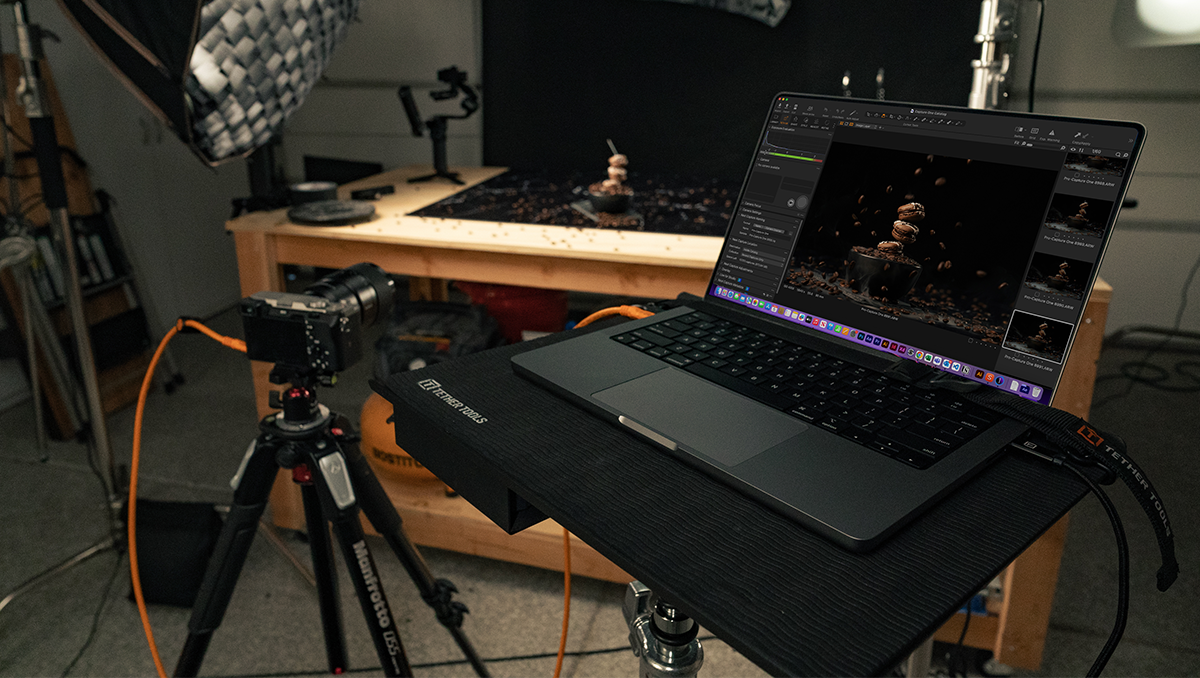
Are All USB-C Cables the Same
One of the most common tethering mistakes is assuming every USB-C cable does the same job.
USB-C describes the shape of the connector. It does not automatically tell you:
- Whether the cable supports data transfer
- How fast it can move image files
- Whether it is built primarily for charging
- Whether it can hold a stable connection over a long run
- Whether the cable ends fit securely into your camera and computer
- Whether the cable is practical on a working set
That is why two cables can look nearly identical and perform very differently during a tethered shoot.
Two USB-C cables can fit the same camera and computer yet support very different data speeds. The connector tells you how the cable plugs in. Its specifications tell you how it can move your files.
A 100W or 240W label describes power capability. A 5Gbps or 10Gbps label describes data capability. If you need to move image files, look for a separate data specification rather than choosing by charging wattage alone.
A short USB-C cable that came with a hard drive, phone, monitor, hub, or battery pack may be designed for a different job. Some cables prioritize charging. Some handle data, but only over short distances or at lower speeds. Some are physically stiff, easy to trip over, or not built for repeated movement between camera, tripod, cart, laptop stand, and workstation.
For a paid shoot, verify that the cable can support the distance, movement, and repeated transfers your setup requires.
What USB-C Data Transfer Speeds Mean
USB naming can be confusing. The clearest starting point is the stated data rate. USB-IF identifies USB 3.2 Gen 1 as 5Gbps and USB 3.2 Gen 2 as 10Gbps.
| Data specification | Rated signaling speed | What to check |
| USB 3.2 Gen 1 | 5Gbps | Whether this meets your devices’ transfer capabilities and shooting needs |
| USB 3.2 Gen 2 | 10Gbps | Whether both devices and the connection path support 10Gbps |
These are rated signaling speeds, not guaranteed file transfer speeds. A 10Gbps cable cannot make a 5Gbps camera port operate at 10Gbps. The connection is constrained by the capabilities of the cable, both devices, and any hubs or adapters between them.
Storage performance and software processing also affect how quickly a photo becomes available. Faster data transfer and faster preview generation are related parts of the experience, but they are different measurements.
Watch the TetherPro Optima 10G Speed Test
A speed test helps put cable specifications into context. Start by checking what the test measures: transferring a file, reading from a drive, writing to a drive, or sending a captured image into tethering software.
Some benchmarks display results in MB/s, or megabytes per second, while cable specifications use Gbps, or gigabits per second. There are eight bits in a byte. To convert a decimal MB/s reading to Gbps, multiply by eight and divide by 1,000.
For example, a hypothetical 800MB/s reading equals 6.4Gbps. This is a conversion example, not a result from the video. The measured result reflects the complete test setup and its overhead.
When comparing cables, keep the devices, ports, files, software, and connection path consistent. Record cable lengths and repeat the test. A drive benchmark can help assess a connection, but it does not establish how every camera will perform during tethered capture.
What A Camera Tethering Cable Needs To Do
A camera tethering cable has one primary job: move image data from the camera to the computer reliably while the shoot is happening.
That sounds simple, but tethering puts real pressure on the connection. A professional tethered workflow may include:
- RAW files moving directly into capture software
- Immediate full-screen image review
- Art director or client review on set
- Focus, composition, styling, and exposure checks
- File naming and folder organization during capture
- Backup workflow while the set is still active
- Long cable runs between camera and workstation
- Camera movement around tripod, stand, tabletop, or location setup
- Assistants, stylists, and clients working near the tether line
In that environment, a good tethering cable needs more than the correct plug shape.
It needs the right connection type, data performance, cable length, physical handling, port protection plan, and workflow support around it.
For a creator photographing products for an online store, tethered review might mean spotting a distracting reflection before finishing the setup. In a portrait session, it can help the photographer evaluate an expression with the client. On a commercial set, it lets the creative team review images together.

When A Regular USB-C Cable May Work
A regular USB-C cable may work for tethering if all of the following are true:
- The cable supports data transfer, not just charging
- The cable matches the camera port and computer port
- The camera is supported by your tethering software
- The cable is short enough to maintain a stable signal
- The connector fits securely at both ends
For example, if you are at home testing whether a camera appears in tethering software, a general USB-C data cable may be enough to confirm basic compatibility.
For a product shoot, portrait session, food set, e-commerce day, or campaign production, test the cable in the actual setup before relying on it for real-time review.
When A Regular Cable Becomes The Problem
Cable issues can look like software problems, camera problems, or computer problems.
A weak tether connection may show up as:
- The camera is not recognized by the computer
- The camera appears, then disappears
- Images transfer slowly or inconsistently
- Capture software stops receiving files
- The camera only connects after unplugging and reconnecting
- The connection drops when the camera is moved
- The tether works with one cable length but not another
- The setup works in testing but fails during production
When that happens, photographers often start troubleshooting software settings first. That is understandable, but the cable should be one of the first things checked.
The cable is the physical path everything depends on.
Charging Cables Versus Tethering Cables
Many USB-C cables are built to handle both power and data. That can be useful for phones, tablets, drives, monitors, and charging accessories. It is not always ideal for tethered capture.
In a camera tethering workflow, the priority is stable data transfer. Power behavior can introduce another variable in some camera and computer combinations. Check the camera’s USB settings and test the connection rather than assuming every cable that supports both power and data will behave the same way.
TetherPro Optima 10G USB-C cables are designed for tethered capture with a dedicated data-focused architecture that omits USB Power Delivery charging. They support USB 3.2 Gen 2 data transfer at up to 10Gbps. The goal is simple: stable transfer and fewer connection variables during a shoot.
The line combines shielding and a weather-resistant housing with Soft-Grip tips labeled for the camera and computer. TetherBoost signal technology supports longer connections; check the specifications of the particular cable and length you choose.
Plan camera power separately rather than selecting Optima as a USB-C PD charging cable. You can compare the options in the USB-C cables collection.
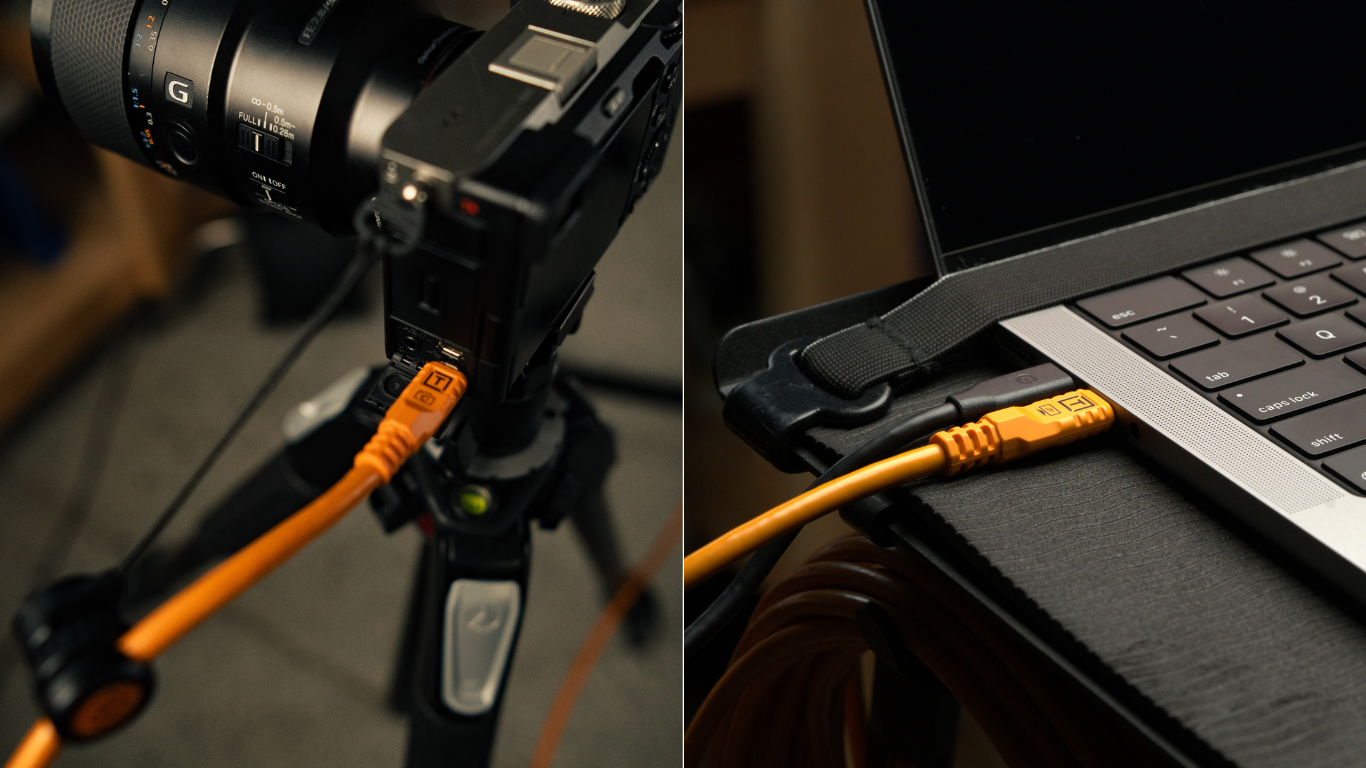
The important takeaway is not that every regular cable will fail. It is that regular cables are not all built for the same job. A tethering cable should be selected for the workflow you are asking it to support.
What Kind Of USB Cable Do You Need For Tethering?
Use this checklist before choosing a tethering cable.
1. Match The Camera Port
Start with the camera.
Check whether your camera uses USB-C, USB 3.0 Micro-B, USB Mini-B, USB Micro-B, or another connection type. Do not guess based on camera brand alone. Camera models within the same brand can use different ports.
If you are unsure, use the Tether Tools Cable Finder to match the camera manufacturer, camera model, and computer port.
2. Match The Computer Port
Next, check the computer.
A laptop may have USB-A, USB-C, Thunderbolt, or a mix of ports. The port shape affects what cable or adapter path you need, but the port standard can also affect performance.
The cleanest setup is usually a direct cable path from camera to computer whenever possible. If adapters or hubs are required, keep the setup simple and test it before the shoot.
3. Confirm Data Transfer
Do not assume a cable supports data just because it fits.
For tethering, the cable must support data transfer. Charge-only cables are not appropriate for tethered capture. If a cable was included with a charger, battery pack, light, or non-camera accessory, verify its data capability before relying on it.
Look for a stated transfer rate in the product specifications or packaging. A successful connection confirms basic data transfer, but it does not establish the cable’s maximum speed.
4. Choose A Practical Length
Cable length matters.
A short cable may be stable but limit camera movement. A longer cable gives photographers and assistants more working room, but long runs can be more demanding on signal integrity.
For professional setups, choose a cable length that supports the set without adding unnecessary slack. Keep the line visible, supported, and protected from strain.
If the camera needs to be farther from the workstation, use a tethering setup designed for extended distance, such as a TetherBoost Pro USB-C Core Controller Extension Cable, rather than stringing together random cables and adapters.
5. Consider Cable Direction
Straight and right-angle connectors solve different workflow problems.
A straight connector may work well when the cable exits cleanly from the camera. A right-angle connector can help route the cable around the side of the body, an L-bracket, a tripod plate, or the photographer’s hand. Check clearance and support the cable so its weight and movement do not pull against the port.
The right choice depends on how the camera sits during the shoot.
6. Protect The Camera Port
A stable cable is only part of the setup.
The camera port also needs protection. A tether cable can be bumped, pulled, stepped on, or snagged. Even a reliable cable can create risk if all of that force transfers directly into the camera port.
Cable management tools such as the TetherGuard LeverLock Plus Plate and TetherGuard Tethering Support Kit are built to help protect camera and computer ports, reduce cable strain, and keep the connection secure.
For working photographers, port protection is not an accessory afterthought. It is part of the tethered workflow.
Regular USB-C Cable or Dedicated Tethering Cable
Use this table as a quick decision guide.
| Situation | What to verify | Dedicated tethering cable benefit |
| Quick desk test | Basic data transfer and software recognition | A useful way to test the intended capture connection |
| Paid client shoot or live review | Repeated transfers and stability in the actual setup | Construction and working lengths designed for camera capture |
| Long cable run | Rated data speed at the full working distance | Signal support in cable systems designed for extended runs |
| Frequent camera movement | Connector clearance, routing, and strain relief | Cable options that can be paired with port protection |
Choose according to the tested performance of the complete connection, not the connector shape alone.
How To Test A Tethering Cable Before A Shoot
Do not wait until call time to test your cable.
Before the shoot, run a simple tethering check:
- Connect the camera directly to the computer.
- Open your tethering software.
- Confirm the camera is recognized.
- Capture test images.
- Confirm files transfer into the correct folder.
- Move the camera gently through normal shooting positions.
- Watch for disconnects or delays.
- Confirm the cable is not pulling against the camera port.
- Test the actual cable length you plan to use.
- Pack a backup cable.
If you will use a hub or adapter on set, include it in the test. Testing a short direct connection and then changing the cable length or connection path does not test the actual shooting setup.
If the connection drops during testing, fix it before the set is built. A dropped connection during the test is a warning, not a small inconvenience.
Build The Whole Tethered Connection, Not Just The Cable
A reliable tethered workflow is a system.
The cable matters, but it works together with:
- Camera compatibility
- Computer port type
- Tethering software support
- Cable routing
- Port protection
- Workstation placement, such as an AeroTrac
- File organization
- Backup plan
- Power management
If any one of those pieces is weak, the shoot slows down.
For example, a great cable can still create problems if it hangs unsupported from the camera port. A supported cable can still fail if it is the wrong connection type. A correct cable can still frustrate the team if the software is not configured before the first shot.
The strongest tethered setups are planned before the camera is on set. If you are building a first tethered setup from scratch, a Starter Tethering Kit can give photographers a more complete starting point than choosing a cable alone.
Common Cable Mistakes To Avoid
Mistake 1: Choosing By Connector Shape Alone
USB-C to USB-C does not automatically mean the cable is right for tethering. Check data support, cable design, length, and intended use.
Mistake 2: Using A Charge-Only Cable
A charge-only cable may power a device but fail to move image data. For tethering, data transfer is required.
Mistake 3: Running Too Long Without Support
Long cable runs need the right equipment. If you need more distance between camera and workstation, build the setup intentionally.
Mistake 4: Forgetting Port Protection
The cable should not be the only thing protecting the connection. Use cable management to reduce strain and help prevent accidental disconnects.
Mistake 5: Testing With One Setup And Shooting With Another
If you test with a short cable at your desk but shoot with a longer cable, hub, adapter, or different computer, you have not tested the real workflow.
Recommended Tethered Cable Setup Checklist
Before your next tethered shoot, confirm:
- Camera model and port are identified
- Computer port is identified
- Cable supports data transfer
- Cable length matches the shooting environment
- Right-angle or straight connector is chosen based on camera position
- Tethering software recognizes the camera
- Files transfer into the correct destination folder
- Cable is routed away from high-traffic areas
- Camera and computer ports are protected with appropriate port protection
- Backup cable is packed
- Cable Finder and Software Finder have been checked if compatibility is unclear
This checklist helps address common tethering problems before the shoot.
So, Can You Use A Regular USB-C Cable?
Yes, sometimes.
For professional tethered photography, choose a cable that can stay connected, transfer files consistently, and support the pace of the shoot. Add cable management to help protect the camera port.
If the answer is uncertain, use a dedicated camera tethering cable and build the rest of the workflow around reliability.
A good tethered setup should make the shoot feel calmer, not more fragile. The right cable helps your camera connect quickly, keeps images moving into your software, gives the team a larger screen for review, and reduces the kind of technical interruptions that break momentum on set.
When in doubt, start with the Tether Tools Cable Finder to match your camera, computer port, and workflow. Then add cable management to protect the connection from the real-world movement of a working shoot.
FAQ
Is a camera tethering cable different from a regular USB cable?
It can be. A camera tethering cable is selected or built for reliable image data transfer between a camera and computer. A regular USB cable may be designed for charging, short-distance data, or another device type. For professional tethered capture, the cable’s data performance, length, construction, and connection stability matter.
Can I use the USB cable that came with my camera?
Sometimes, especially for basic testing. But camera-included cables are often short and may not be ideal for a professional set. If you need more working distance, faster setup, better visibility, or stronger reliability, choose a dedicated tethering cable matched to your camera and computer.
What is the best USB-C cable for tethered photography?
The best cable is the one that matches your camera port, computer port, data needs, cable length, and shooting environment. For professional USB-C tethering, TetherPro Optima 10G is designed specifically for tethered capture with dedicated data transfer and stable camera recognition.
Why does my camera keep disconnecting while tethering?
Common causes include the wrong cable, a charge-only cable, a loose port connection, an unsupported cable length, software compatibility issues, power settings, or cable strain at the camera. Start by testing a known reliable data cable and adding port protection.
Do I need cable management for tethering?
Yes, for any serious tethered workflow. Cable management helps reduce strain, protect camera and computer ports, keep the tether line visible, and prevent accidental disconnects when the camera or people move around the set.
How do I know which tethering cable fits my camera?
Use the Tether Tools Cable Finder. Select your camera manufacturer, camera model, and computer port to find the correct cable path for your setup.
Do All USB-C Cables Transfer Data
Do not assume data capability or speed from the connector or charging label alone. Check the manufacturer’s specifications. A cable described only by its wattage has not given you enough information to judge its suitability for photo transfers.
Will a 10Gbps Cable Make Every Camera Transfer Faster
No. The camera, computer, storage, software, and connection path determine the practical result. A 10Gbps cable supports that data rate when the connected equipment can use it; it does not increase a slower device’s capabilities.
Find the right connection for your next shoot with the Tether Tools Cable Finder, or explore TetherPro Optima 10G.
